
Griasa
FreeNot checkedWhat was promised, by whom, and what you walk into next — a local-first macOS menu-bar app that turns recorded meetings into commitments, briefs you before the

About
What was promised, by whom, and what you walk into next — a local-first macOS menu-bar app that turns recorded meetings into commitments, briefs you before the next call, and also types what you say into any app.
README

Griasa
A promise with a date turns up when the date passes. One without a date never turns up at all.
Griasa records your meetings on your own Mac, works out who promised what, and puts the second kind in front of you before your next call with the person you owe. A menu-bar app, not a service.
Download for macOS · The project page · What changed





Support/shoot-docs.sh.What it does
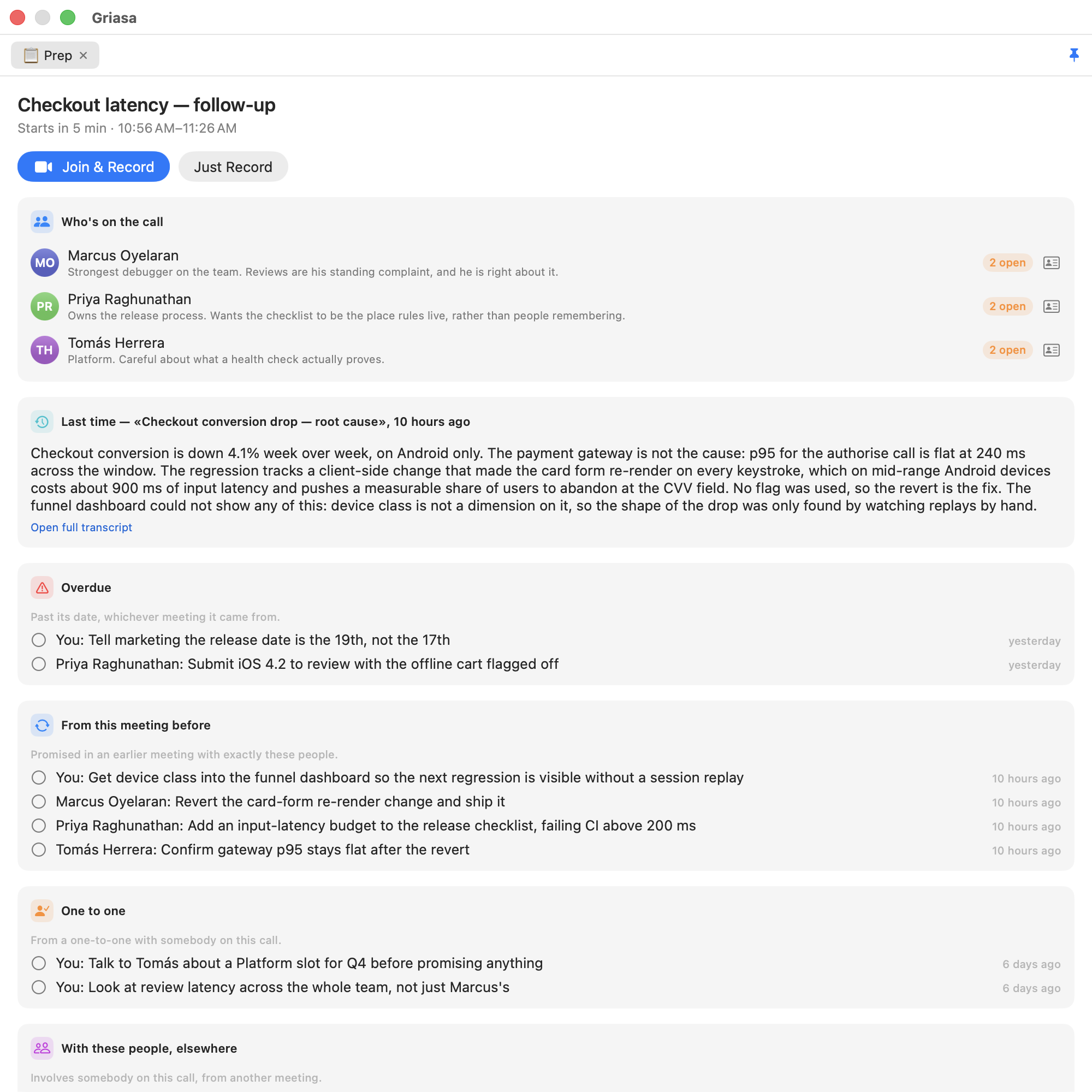
Before the call. Minutes before a calendar event, a panel appears with who is on it and what you last discussed. Open promises are grouped by why you are being shown them — overdue, promised in an earlier call with exactly these people, from a one-to-one with somebody in the room, or with these people from somewhere else. A promise involving nobody in the room is not shown at all. One button opens the Zoom or Meet link and starts recording.
During. Your microphone and everything the Mac plays are captured as two tracks, which is what lets the transcript say who was speaking. Make a reminder from anything on screen (⌃⌥⌘R) and it remembers the app, window and browser tab it came from. Hold a key and talk, and the words land in whatever app has focus.
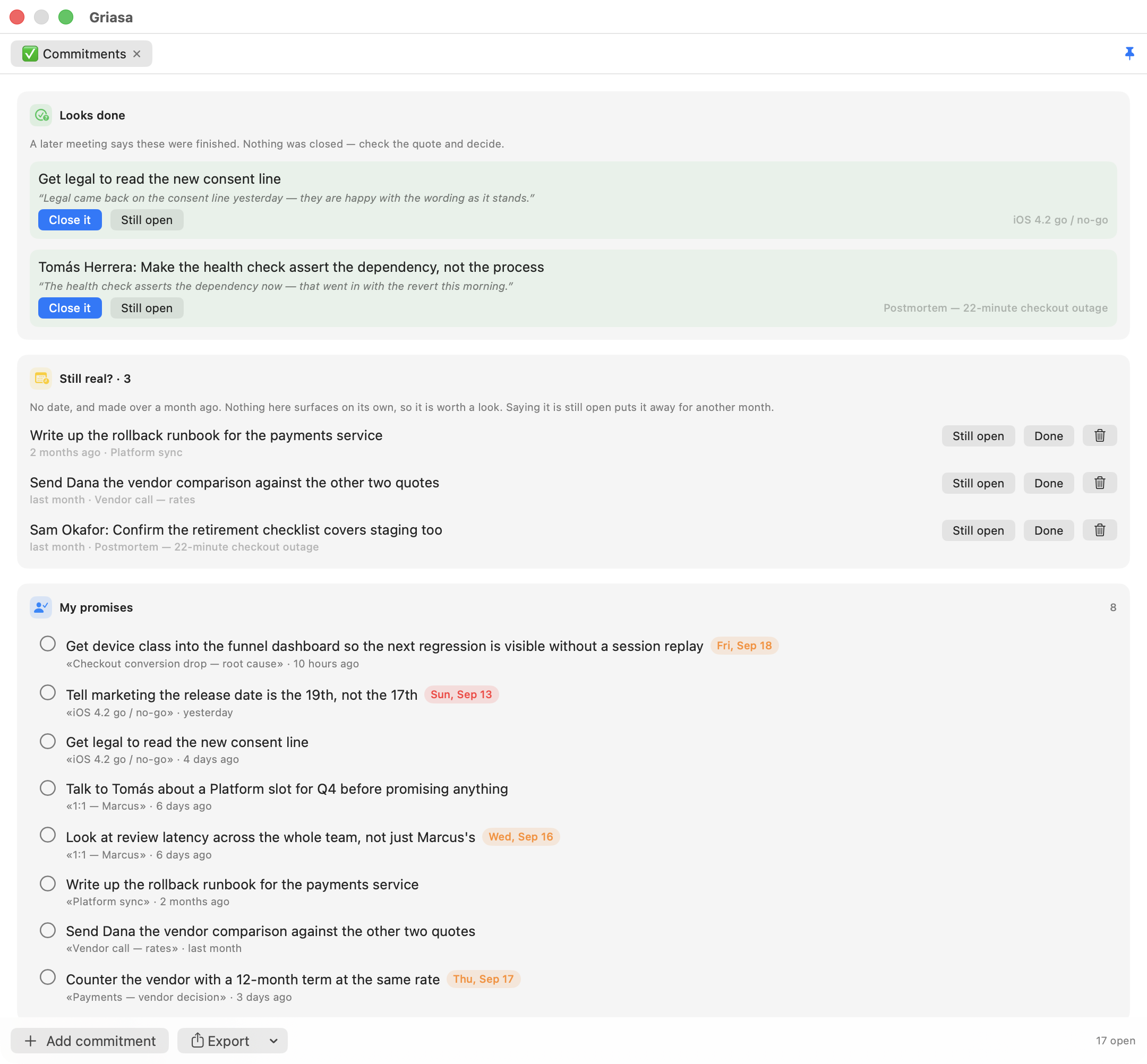
After. Promises are pulled out of the transcript — who took what on and by when — split into what you owe and what you are owed. A later conversation can propose closing one, and has to quote the sentence that says it was finished; nothing closes itself. Anything old and undated gets asked about, because that is the kind that never surfaces on its own. Every colleague gets a page built from the meeting roster, with no setup step.
And your own assistant can read it. Claude Code, Codex, Cursor — anything speaking MCP — over a local, token-protected, read-only endpoint, and Claude Desktop installs it in one click.
Everything runs at once: you can dictate while a conversation is being recorded. Most of the pieces are small, and Apple could ship several of them tomorrow. What is hard to copy is that they are one thing — the reminder made during a call, the promises extracted from that same call, the page for the person who made them and the brief before the next meeting with them all point at the same people and the same history. Separate apps would need separate integrations and would still lose the joins, because a join is not a feature any one of them owns.
The project page has the rest: more screenshots, what leaves your Mac and what doesn't, the engineering that turned out harder than it looked, and the questions people actually ask.
Privacy Policy
The short version is below; the full policy is at stari-am.github.io/griasa/privacy.html.
- Audio never leaves your Mac. Transcription is local — Apple's recognizer or
whisper.cpp. There is no Griasa server and no account. - Text stays on the Mac by default. A new install uses a local model that Griasa sets up after one question; Anthropic, OpenAI or Gemini are used only if you choose one.
- The calendar is read, never written. Reminders are created, but only when you ask for one.
- API keys are kept in the macOS keychain, encrypted, not in a plain preferences file.
- Every permission is optional, and the app says what stops working if you decline it.
- An optional reminder to tell people they're recorded. The other side of a call gets no recording indicator from macOS. Turn on Settings → Meetings → Remind me to tell everyone, and starting a recording offers a sentence to paste into the call's chat.
- Notes from other tools come in too. Import Meeting Notes… turns a ChatGPT Record, Zoom or Meet summary into a Griasa meeting — promises, people pages, the brief — dated by when the meeting happened.
- Old audio can delete itself. Transcripts and notes are kept; the audio of transcribed recordings can be removed after a chosen period (Settings → Meetings → Recordings on disk). It is nearly all of the space recordings take.
- Companies can lock it down with MDM — on-device AI only, a company model server, MCP off. See Support/mdm.
Download
Download the latest release — signed, notarized, universal, or ./build.sh to compile it yourself.
With Homebrew, one command installs the app and both engines it uses (whisper.cpp for speech, llama.cpp for the on-device AI):
brew install --cask stari-am/tap/griasa
Free, and nothing is held back: there is no license check, and under GPL-3.0 there could not be a meaningful one. If it saves you time, $29 on Ko-fi would make my day — any amount does, and none is fine too.
Think of it the way you think of WinRAR: the trial never ends and it keeps working whether or not you pay. WinRAR apparently makes real money like that, which leaves the mystery nobody has solved in thirty years — somebody pays. Feel free to be one of the somebodies.
Documentation
Everything below is for running, building and changing it.
How dictation behaves
| Trigger | Hold Right Option / Right Command / Fn (configurable) — works in any app's text field |
| Insertion | Live typing as you speak, then a single corrected replacement on release |
| Auto edits | Filler words removed, punctuation restored, lists formatted, self-corrections resolved |
| Tone | The frontmost app's name is passed to the AI prompt, so Slack reads casual and Mail reads formal |
| Speech recognition | On-device (Apple recognizer, or whisper.cpp locally) — audio never leaves the Mac |
| Cloud usage | Only the short cleanup step may call an LLM, and only text, and only if you enable it |
| Languages | Any locale the system offers; two or three at a time run as parallel legs and the winner is locked in |
| Snippets | Typed abbreviations expand in place, including ;ai … ;; for an inline question |
Build & run
./build.sh        # produces "Griasa Dev.app"
open "Griasa Dev.app"
./test.sh         # the invariant checks; release.sh runs these first
A local build announces itself: amber DEV icon, its own file name, "Griasa
Dev" in Privacy settings and Activity Monitor, and a squared-off menu-bar glyph.
It also uses its own bundle identifier, am.stari.griasa.dev. That last part is
not cosmetic — macOS stores a privacy grant against the identifier and the
signature it saw, so two differently-signed builds sharing one identifier
overwrite each other's grants and both end up asking every launch. Separate
identifiers cost one round of permission prompts, once. release.sh does none of
this; the signed build carries the real identifier, icon and name.
test.sh checks the rules live typing must never break — emitted text only ever
grows, a hypothesis that re-words the start of an utterance may not extend its end,
the language leg locks once. The first two were regressions that actually shipped;
they now fail a command instead of a text field. There is no test framework involved: swiftc compiles
PartialStabilizer.swift with the checks and the binary exits non-zero, so this
works on a machine with only the Command Line Tools. Each failure message states
the rule and why it matters, because "expected true, got false" tells whoever reads
it nothing.
Benchmark. How well Griasa finds promises is measured on six invented
meetings in benchmark/ — Russian, English, Ukrainian and
mixed, from a 12,000-character sync to a 90,000-character roadmap session — each
with the promises a person marked by hand. "Griasa Dev.app/Contents/MacOS/Griasa" --benchmark benchmark/meetings runs today's single pass, the long-meeting path
and (with --cloud <provider>) a cloud reference on them and prints recall,
precision and mine/theirs accuracy. Nobody in them is real, so anyone can rerun
it and compare.
Distribute it yourself
./release.sh      # signed + notarized dist/Griasa-<version>.dmg — the one on Releases
./dist.sh         # ad-hoc signed dmg, no Apple account needed
release.sh is the path used for the published build: Developer ID signature, Hardened Runtime, Apple's notarization ticket stapled to both the app and the disk image, then verified the way a stranger's Mac will — spctl, stapler, and lipo -archs on the finished file rather than on the build settings. It needs a Developer ID Application certificate and a stored notarytool credential; run it without them and its preflight explains exactly what to create, including the two traps that cost the most time (importing the certificate with security import because a double-click reports -25294, and installing the G2 intermediate separately or codesign dies with "unable to build chain to self-signed root").
dist.sh is for handing a build to a colleague with no Apple Developer account: a universal dmg with an app icon, an /Applications shortcut, and INSTALL.txt. Being ad-hoc signed, recipients must right-click → Open once. Either way the rest is self-provisioning: on first launch the app installs whisper-cpp via Homebrew, downloads the model, and asks for the four permissions.
Builds on macOS 14+ with either full Xcode or the standalone Command Line Tools; runs on macOS 14+. build.sh compiles with swiftc directly, which needs no working SwiftPM — some standalone Command Line Tools installs ship a broken manifest library. Package.swift is equivalent and swift build works under full Xcode; use whichever you prefer.
Intel builds have a deadline. Xcode 26 is the last release that runs on Intel Macs and the last that gives you x86_64 for free. Under Xcode 27, a deployment target of 27.0 or later drops x86_64 from ARCHS_STANDARD silently — no error, just an arm64-only binary — and Intel software support ends altogether in macOS 28. This project targets macOS 14.0, so release.sh still produces a genuine universal binary; it verifies with lipo -archs rather than trusting the build settings, and you should keep doing that if you ever raise the target.
Contributing
Patches welcome, and so is a fork. CONTRIBUTING.md covers the build, the invariant checks, and the handful of conventions a patch is most likely to trip over — where prompts live, why new UI is a hub tab rather than a window, and why screenshots must never be taken against real data.
Make it yours (forks & custom builds)
Everything that identifies whose build this is lives in one file: Sources/Griasa/BuildConfig.swift. Edit it before building:
| Constant | What it drives | If left empty |
|---|---|---|
supportEmail |
"Send Feedback" mail drafts | feedback buttons hidden |
donateURL |
the ♥ donate button | donate buttons hidden |
updateRepo |
daily update check against github.com/<owner>/<name> Releases |
update checking off |
appName |
mail subjects and version lines | — |
Code signing is parameterized via environment variables — no script edits needed:
CODESIGN_IDENTITY="My Own Cert" ./build.sh                       # dev build (default: "Griasa Dev Signing")
DIST_SIGN_IDENTITY="Developer ID Application: You (TEAM)" ./dist.sh  # distributable (default: ad-hoc)
Bundle identifier and version live in Support/Info.plist — change CFBundleIdentifier if you distribute a fork, so your permission grants and update feed never collide with upstream builds.
Changing what the AI is told
Every system prompt Griasa sends to a model is in one file: Sources/Griasa/Prompts.swift — dictation cleanup, meeting notes, commitment extraction, colleague dossiers, project filing, document drafting, reminder parsing, chat replies, inline answers. Reading that file is enough to know exactly what the app asks a model to do; edit it and rebuild to change the app's behavior.
Runtime values are written {{placeholder}} and filled by the call site — {{today}}, {{participants}}, {{skeleton}} and so on. A placeholder the caller doesn't supply is left visible in the prompt rather than silently blanked, so a mistake shows up in the output instead of hiding.
You don't have to rebuild to experiment: Settings → AI & Actions → System prompts → Export for editing writes the current wording to ~/Documents/Griasa Prompts.json. Any key present there overrides the built-in version; delete a key (or the file) to go back. Reload edits picks up changes without a restart.
The prompt-preset library (Settings → Prompt presets) is deliberately not in that file — those are your own documents, edited in the UI and stored per user, not app behavior.
Always run the bundled app (
Griasa Dev.applocally,Griasa.apponce installed), not the bare binary — macOS permission prompts (mic, speech) need the Info.plist in the bundle.
Permissions (one-time)
On first launch Griasa asks for everything it needs. If a prompt doesn't appear, grant manually in System Settings → Privacy & Security:
| Permission | Used for |
|---|---|
| Microphone | dictation + recording |
| Speech Recognition | on-device transcription |
| Accessibility | global hotkey + inserting text (⌘V synthesis) |
| Screen Recording | system-audio capture (macOS gates app audio behind this) |
After granting Accessibility or Screen Recording, quit and relaunch Griasa.
Signing & permission stability: macOS ties privacy grants to the app's code signature. build.sh signs with a local self-signed certificate ("Griasa Dev Signing", created once in the login keychain), so the identity — and your permission grants — survive rebuilds. If that certificate is missing, the script falls back to ad-hoc signing and warns you (with ad-hoc, every rebuild looks like a new app and permissions reset). To recreate the certificate: generate a self-signed cert with the codeSigning EKU, import the .p12 (legacy format) into the login keychain, and security add-trusted-cert -r trustRoot -p codeSign it. If permissions ever get into a confused state, clear them with tccutil reset All am.stari.griasa and re-grant once.
Using it
Dictation
- Click into any text field in any app.
- Hold Right Option (⌥) — the menu-bar mic fills in.
- Speak — words appear live at your cursor as you talk (instant on-device recognizer).
- Release the key — the live text is corrected in place with the polished Whisper + AI-cleaned version (only the differing tail is rewritten, via a diff of synthetic keystrokes).
Live typing can be turned off in Settings → Dictation (then everything is pasted once at the end) — useful in apps where synthetic keystrokes misbehave (e.g. fields with aggressive autocomplete).
Griasa keeps a lifetime time-saved counter (words dictated × the 40 wpm-typing vs 150 wpm-speaking gap) in the menu-bar panel and Settings → System.
On first launch a Welcome guide opens in the hub: quick start plus a live checklist of the three system permissions, each with a one-click jump to the right System Settings pane and a note on what still works if you decline. Reopen it anytime from Settings → System.
AI cleanup uses the configured AI provider (see below). Without one — or if the call fails — a local rule-based cleanup runs instead, so dictation always works offline.
AI providers — local by default; Anthropic, OpenAI, Gemini or your existing subscription if you choose them
Every AI feature routes through one configurable provider (Settings → AI & Actions). A new install is on the local model — nothing is sent to a cloud vendor until somebody chooses one.
- Local (the default) — no key and nothing to install by hand. Griasa looks at the Mac's memory and free disk, uses a model already in Ollama or LM Studio if there is one, and otherwise asks once to download a model sized to the Mac's memory (about 3 GB to 37 GB) into its own engine on
127.0.0.1:8177. Short English cleanup jobs go to Apple's on-device model where the Mac has it. A server address or model names typed into Settings (customBaseURL,customFastModel,customSmartModel) are never replaced. Meetings that end before the model is ready are summarized afterwards. If no local model is running, the first AI action says so and how to fix it. With the built-in local Whisper, Griasa then runs fully offline — no text ever leaves the Mac. (Organizations: MDM guide.) - Anthropic (Claude) — key from Settings or
ANTHROPIC_API_KEY. Keys entered in Settings are kept in the macOS login keychain, never in the preferences file. - OpenAI — key from Settings or
OPENAI_API_KEY(GPT-5.6 family by default). - Google (Gemini) — key from Settings or
GEMINI_API_KEY(via Google's OpenAI-compatible endpoint; Gemini 3.x by default). - Claude Code (subscription) / Codex CLI (ChatGPT subscription) — no API key at all: if the
claudeorcodexCLI is installed and logged in, Griasa answers through it, billed to the subscription you already pay for. Auto-detected (with an optional path override); expect ~5–10 s per request — great for meeting notes, dossiers, and documents, slower than an API key for typing-path features like;tldr. (CLIRunner.swift)
Each provider has a fast model (dictation cleanup, reminder parsing, classification, reply drafts) and a smart model (presets, summaries, Ask Project, meeting notes); defaults are sensible (Haiku 4.5/Opus 4.8, GPT-5.6 Luna/Terra, Gemini 3.1 Flash-Lite/3.5 Flash; Qwen3 8B/30B for a local server set up by hand — the model Griasa sets up itself serves both) and editable — for local endpoints a Load model list button offers what's actually installed, and Test pings the provider and reports latency. Meeting transcripts are trimmed to a context budget on local models (38k characters for the model Griasa sets up, which leaves room for the reply; 24k by default, configurable, for a server set up by hand; cloud models get 400k). An install from before local became the default, which already had a cloud key and no saved choice, keeps that provider — pasting the key was the choice. If the selected provider fails — the local model not running is the usual case — and a cloud provider is also available, explicit actions ask before re-sending that one request through the cloud ("ask each time", with an until restart option); dictation cleanup and background classification never ask — they degrade silently. (LLMProvider.swift, AIFormatter.swift)
Speech engines
Griasa prefers Whisper (whisper.cpp, large-v3-turbo) — dramatically more accurate than Apple's recognizer, fully local, with genuine automatic language detection built into the model.
Setup is automatic on first launch: the app installs whisper-cpp via Homebrew (if missing) and downloads the 1.6 GB model to ~/Library/Application Support/Griasa/, showing progress in the menu-bar menu and in Settings → Speech engine (with a Retry button if anything fails). Only Homebrew itself is assumed; without it the app tells you and keeps working on the Apple engine.
Every model is checked before it is used. Downloads come from a pinned repository commit, not a branch, and are verified against a SHA-256 and size written into the app (ModelManifest.swift) before they are moved into place — a file that does not match is never installed. Models already on disk are checked once after an update and remembered; one that fails is renamed *.unverified and replaced with a verified download. Manual equivalent:
brew install whisper-cpp
curl -L -o ~/Library/Application\ Support/Griasa/ggml-large-v3-turbo.bin \
  https://huggingface.co/ggerganov/whisper.cpp/resolve/5359861c739e955e79d9a303bcbc70fb988958b1/ggml-large-v3-turbo.bin
shasum -a 256 ~/Library/Application\ Support/Griasa/ggml-large-v3-turbo.bin
# expect 1fc70f774d38eb169993ac391eea357ef47c88757ef72ee5943879b7e8e2bc69
Griasa keeps a local whisper-server running with the model loaded, so dictation transcribes near-instantly on hotkey release and meeting regions don't pay a per-call model load. When whisper-cli or the model is missing, everything falls back to the Apple recognizer.
Correct timeline on meetings: whisper.cpp's built-in --vad concatenates speech chunks and re-times them continuously, so text after long pauses drifts earlier (upstream issue #3634). Griasa avoids this by running Silero VAD itself (whisper-vad-speech-segments), slicing each speech region out of the audio, transcribing regions individually against the warm server, and stamping each with its true start time — segments stay in real chronological order even across long silences. A headless mode re-runs the pipeline on any past recording: "./Griasa Dev.app"/Contents/MacOS/Griasa --transcribe "<recording folder>".
Automatic language detection
- Whisper: language detection is native to the model (
-l auto) — nothing to configure. - Apple fallback: Apple's recognizer needs a fixed locale per request, so Griasa runs one recognizer per configured language in parallel (Settings → Dictation → Languages, default
en-US, ru-RU) and keeps the transcription with the highest confidence score — per phrase for dictation, per 30-second chunk for meetings.
Mixed-in English tech/crypto terms are handled two ways:
- A built-in vocabulary (Vocabulary.swift: GitHub, deploy, staking, jetton, seed phrase, mainnet…) plus your own terms from Settings is fed to Whisper as an initial prompt and to Apple recognizers as contextual hints.
- The cleanup prompt instructs the model to keep English terms untranslated and to fix phonetically transliterated ones ("гит хаб" → "GitHub") while never translating the rest of the text.
Prompt presets on selected text (any app)
Select text anywhere — browser, Slack, PDF — and apply a prompt preset from the menu or its hotkey. Ships with Summarize (⌃⌥⌘S), Fix grammar (⌃⌥⌘G), Translate to English, Make it professional, To bullet points, and Rewrite as commit message. Editable presets that rewrite the text (grammar, translate…) show a Replace Selection button; summaries don't.
Add your own in Settings → AI & Actions: name, emoji, the instruction to the model, whether it replaces the selection, and an optional hotkey. Defaults use the triple-modifier ⌃⌥⌘ because global hotkeys on macOS can't be swallowed — the frontmost app also receives the keystroke, so the combo must be one no app binds. Griasa waits for you to release the modifiers before reading the selection (synthesizing ⌘C while modifiers are held can reach some apps as plain text and wipe the selection); your clipboard is saved and restored.
History & export
Every dictation, meeting transcript, and preset result is saved to a searchable History window (menu → History…). Search full text, then Copy, Insert, Reveal File, or Export. Stored locally in ~/Library/Application Support/Griasa/history.json (last 500 entries).
Export (from History and from any result popup) needs no external service or auth:
- Save As… → Markdown (
.md), PDF, HTML, RTF, or plain text. - Copy as Rich Text → paste formatted (headings, bold, bullets) straight into Google Docs, Notion, Confluence, Word, or Slack.
Markdown imports cleanly into Notion/Obsidian/GitHub; HTML and RTF paste with formatting into Docs/Confluence; PDF is print-ready. (Exporter.swift — a small dependency-free Markdown→HTML converter feeds macOS's rich-text and print systems.)
Capture (any app)
Four system-wide actions, each with a menu item and a configurable hotkey (Settings → Capture):
- ⏰ Remind me (⌃⌥⌘R) — from selected text, or drag a screen region if nothing is selected. A Slack-style menu pops up at the cursor: In 20 minutes / In 1 hour / In 3 hours / Tomorrow 9:00 / Next week Mon 9:00 / Custom… (date picker), plus From the text where the model reads the due date out of the text itself ("завтра в 3", "in 2 hours"). Fixed times work without an API key. The reminder lands in the Reminders app, so it syncs to your iPhone/Watch. Every reminder records where it came from: the source app and window title (Slack workspace/channel, Telegram chat) in the notes, and for browsers the tab URL with a scroll-to-text anchor to the captured text — attached as the reminder's link, one click back to the exact spot. Region-drag reminders also save the clipped image to
Documents/Griasa/Reminders/and link it from the reminder (EventKit can't attach files directly), so you keep the pixels, not just the OCR text. (ReminderSource.swift; browser URLs need a one-time Automation permission per browser.) - 🔤 OCR region (⌃⌥⌘O) — drag a rectangle; the text inside is recognized on-device (Apple Vision, RU+EN, offline) and copied to your clipboard. Works on images, PDFs, and someone else's shared screen.
- 💬 Draft reply (⌃⌥⌘Y) — reads the frontmost chat window via OCR and drafts a contextual reply in the thread's language and tone. Universal: Telegram, Slack, Gmail, any app. Replace Selection pastes it back.
- Run on clipboard (menu) — run any prompt preset against the current clipboard contents, no selection needed.
- ✂️ Snippets — type an abbreviation (
;meet,;sig) in any app and it expands in place, or insert from the menu. Templates support dynamic placeholders resolved at insert time:{date}{date+3d}{time}{clipboard}{meetlink}(your permanent Zoom/Meet room from Settings),{slot}/{slots:3}(the nearest free slots from your calendar — read-only EventKit, work hours configurable),{commitments}/{commitments:mine}/{commitments:theirs}(open promises from the Commitments tab as bullet points with the source meeting, date, and due date —;todospastes yours into any status update), and{ai: instruction}. The default;meetproduces e.g. "Would Tue 21 Jul, 15:00 work for you? Here's my room: …". Settings → Snippets. - ✨
;ai … ;;— ask without leaving the sentence. Type;aiin any app, write the question, close it with;;, and the whole run is replaced in place by the answer:;ai как по-английски "предварительный расчёт";;. No snippet to set up — it's built in, and it reads everything between the markers, so the question can be as long as you like. Escape or moving the caret cancels; if the model fails, your typed text comes back untouched. (SnippetExpander.swift) - ✨
{ai:}— an AI you can type into any text field. The{ai: instruction}placeholder inserts whatever the model writes, right where your cursor is — and placeholders nest, so the prompt can see live context:;tldrexpands{ai: Summarize in 3 bullets: {clipboard}}into a summary of whatever you copied,;entranslates the clipboard into English, and a one-line custom snippet turns any repeated writing task (polite decline, standup opener, commit-message style) into three keystrokes. Works in Slack, Jira, code reviews — anywhere text goes. (Draws on the model's knowledge and your local context; it doesn't browse the web.)
Screen/window capture reuses the Screen Recording permission; Remind asks once for Reminders access. (CaptureController.swift, OCR.swift, RegionCapture.swift, WindowCapture.swift, Reminders.swift)
For the remote lead: commitments, people, meeting prep, documents
- ✅ Commitments — after every recorded meeting, the promises made on the call are extracted quietly (who took what on, and by when — "by Friday" becomes a real due-date chip) and land in the Commitments tab, split into My promises and Waiting on others. Check items off, send any one to Apple Reminders with a click (it'll ping your iPhone), or add one by hand; the source meeting is one click away. The menu-bar item shows how many are open. Export copies the open list as a Markdown checklist (Notion/Obsidian/GitHub) or as one clean task per line — Todoist, Things, and Linear turn a multi-line paste into individual tasks, due dates included. The
;todossnippet pastes your open promises anywhere you're typing. (Commitments.swift) - 📇 People — a page per colleague, built from the meetings roster with zero setup: your free-form notes (autosaved), every meeting you've had with them, their open promises, and an on-demand AI dossier — role and ownership, follow-through, working style, recent topics — written from the transcripts they appear in. (People.swift, PeopleView.swift)
- 📋 Meeting prep — a few minutes before a calendar event with participants or a call link (lead time configurable, Settings → Meetings), the Prep tab slides in without stealing your keyboard focus: who's on the call (with your notes and their open-promise counts), what last meeting with these people was about, what you promised them and they promised you — and a Join & Record button that opens the Zoom/Meet/Teams link and starts recording in one go. Also on demand: menu → Prep Next Meeting. (MeetingPrep.swift)
- 📄 New Document — pick a template (PRD, RFC, One-pager, Postmortem — all editable, add your own in Settings → AI & Actions), talk or paste a brief, and the smart model fills the template's sections. Where the brief is silent it writes an honest TBD with the question that would fill it — it never invents facts. The result is editable in place, copies with a click, and saves to History where it's auto-filed into a project. (DocTemplates.swift)
Projects (organize everything + ask questions about it)
Every history entry — dictation, meeting, capture result — is filed into a project automatically: the fast model matches the entry against each project's name and description (Settings → Projects), falling back to Inbox when unsure or offline. Re-assign any entry from the History window (project picker in the detail pane, filter in the sidebar), and run Categorize existing history once to file everything recorded before the feature existed.
Each project is mirrored on disk as plain Markdown: ~/Documents/Griasa/Projects/<Project>/YYYY-MM-DD-HHmm-<kind>-<id>.md with YAML frontmatter — browsable, git/Obsidian-friendly, and never deleted (removing a project moves its files to Inbox).
🗂 Ask project (⌃⌥⌘P or menu) opens a window where the smart model answers questions using the project's entries plus attached source folders as context — attach a repo, a docs folder, anything; text files are read newest-entries-first up to ~150k characters. Answers are saved back into the project's history. (Projects.swift, ProjectFiles.swift, ProjectAI.swift, AskProjectWindow.swift)
Let an assistant read your meetings (MCP)
Switch on Settings → System → AI assistants (MCP) and Griasa serves a read-only endpoint on this Mac (127.0.0.1, port 8179 or the next free one, bearer token). It answers eight questions: open promises (yours and what you are waiting on), one colleague, meetings by search, one meeting's summary, a transcript (only when asked for), the next meeting's brief, people, projects. Nothing can be changed through it.
- Claude Desktop — one click. Press Add to Claude Desktop. Griasa writes
Griasa.mcpbinto its store folder and opens it in Claude Desktop, which asks you to confirm the install. The extension is a small Node script (Node ships inside Claude Desktop) that forwards Claude's requests to the app; it reads the port and token frommcp.jsoneach time, so a new token or a different port needs no reinstall. Griasa has to be running — if it is not, Claude is told to open it from the menu bar. - Claude Code, Codex, Cursor and others. Press Copy client configuration and paste the block into the client's MCP settings. It looks like
{"mcpServers": {"griasa": {"type": "http", "url": "http://127.0.0.1:8179/mcp", "headers": {"Authorization": "Bearer …"}}}}. - Protocol. Streamable HTTP, MCP 2026-07-28 (stateless;
server/discover; per-request version and headers) and, on the same endpoint, 2025-06-18 and 2025-11-25 clients with theirinitializehandshake. Tools carry titles, read-only annotations and output schemas. Source: MCPEndpoint.swift, MCPTools.swift, MCPBundle.swift.
What an assistant reads goes wherever that assistant sends its context; transcripts are a separate tool so a question about promises cannot pull one in by accident.
Live notes during a call
Enable Show live notes while recording (Settings → Meetings). While a recording runs, the hub's Recording tab transcribes both tracks in ~18-second chunks against the warm Whisper server and shows a running summary (headline, key points, open questions, action items). The summary refreshes every minute when the Auto toggle is on, or only when you press ⟳ Summarize now — your choice. Below the transcript there's a note field: anything you type is pinned into the transcript at the current timecode (📝 rows), fed to the live summary as high-signal input, and woven into the final meeting notes — the model reflects your notes in the Summary/Key points/Action items and keeps them in the transcript as > 📝 **Note [mm:ss]:** blockquotes.
Silence stops a recording that nobody stopped
A recording nobody is speaking into used to run until somebody noticed — one left going overnight filled the disk. When neither the microphone nor the Mac's own audio has carried speech for a while, a small window asks whether to carry on. Keep recording restarts the clock, so the same wait asks again rather than never asking twice; with no answer the recording stops by itself, is transcribed exactly as a manual stop would be, and the transcript's last line says it stopped automatically and after how long. Both intervals are in Settings → Meetings → Silence (five minutes and two, by default). If speech resumes while the question is up, the question goes away and the recording continues. (SilenceWatch.swift, SilenceLevel.swift)
One hub window instead of popup sprawl
Everything lives in a single floating hub window with tabs: action results, the live Recording tab, the Custom-reminder date picker, the "who was on the call?" question, Ask Project, and History. A busy moment — recording a call while setting a reminder off a preset result — is one window with three tabs, not three windows fighting for focus. Closing a tab resolves its flow properly (a dismissed reminder deletes its orphan clip; closing the participants tab counts as "Skip" so the transcription pipeline never stalls). The pin beside the tabs keeps the window open when you switch apps — a panel hides itself on deactivation by default, which suits a popup and not an hour spent reading history. Only Settings (the standard macOS settings scene) and system dialogs (file save/open, the region-drag capture overlay) stay outside. (HubWindow.swift)
Speaker names
Set Your name and enable Ask who was on the call (Settings → Meetings). When a recording stops, Griasa asks which known people took part (roster is remembered) plus any new names, and the model attributes the transcript to real names — using conversational cues like self-introductions and people addressing each other by name — instead of generic "You"/"Them". This is content-based attribution (the two tracks are mic vs. everything-else, not per-speaker audio), so it's most accurate with the roster provided.
Meeting recording + AI transcription
- Menu bar → Start Recording (or enable Start recording when Griasa launches in Settings for always-on capture).
- When you stop a recording, Griasa automatically:
- Transcribes both tracks on-device in 30-second chunks with timestamps (every supported provider is text-only, so speech-to-text always stays local — only text leaves the machine).
- Interleaves them chronologically into a
You:/Them:dialogue (transcript-raw.txt). - Sends the dialogue to the configured smart model, which fixes recognition errors and produces
meeting-transcript.mdwith a summary, key points, action items, and a cleaned speaker-labeled transcript — then opens it (toggleable).
- Without an API key, you still get the raw merged transcript in
meeting-transcript.md. - Each session folder in
~/Documents/Griasa Recordings/<timestamp>/contains:microphone.caf— your voicesystem-audio.caf— everything the Mac played (call participants, videos…)transcript-raw.txt— timestamped merged dialoguemeeting-transcript.md— AI-formatted meeting notes
- Optionally, every finished transcript is also copied to a mirror folder you nominate (Settings → Folders → Transcript mirror folder; empty by default, so nothing is duplicated unless you ask). Point it at a coding agent's project directory, an Obsidian vault, or a git repo and your meetings show up there as plain Markdown.
- The menu-bar icon shows a red record badge while a session is running, and the menu shows progress while the model is working.
⚠️ Consent: recording calls may require consent from all participants depending on your jurisdiction (many places are two-party-consent). Tell people you're recording.
Architecture
Sources/Griasa/
├── GriasaApp.swift          # MenuBarExtra app entry
├── AppState.swift           # Central state + settings (UserDefaults)
├── HotkeyMonitor.swift      # Global flagsChanged monitor (hold-to-talk)
├── MicCapture.swift         # Single shared AVAudioEngine mic tap, multi-consumer
├── DictationEngine.swift    # Parallel per-language recognizers, best-confidence pick
├── Vocabulary.swift         # Built-in tech/crypto contextual vocabulary
├── LLMProvider.swift        # Provider config (Anthropic/OpenAI/Gemini/local) + fallback consent
├── AIFormatter.swift        # Provider router, dictation cleanup + local fallback
├── TextInserter.swift       # Pasteboard swap + synthetic ⌘V
├── SystemAudioCapture.swift # ScreenCaptureKit audio stream → .caf
├── ConversationRecorder.swift # Session folders, mic+system tracks
├── WhisperTranscriber.swift # whisper.cpp integration (preferred engine)
├── WhisperInstaller.swift   # First-launch auto-install: brew + model download
├── FileTranscriber.swift    # Apple-recognizer fallback (chunked, timestamped)
├── MeetingTranscriber.swift # Merge tracks + AI meeting-notes formatting
├── Permissions.swift        # TCC requests/status
├── SelectionActions.swift   # Global preset hotkeys, selection grab
├── PromptPresets.swift      # Prompt-preset model + store (built-in + custom)
├── HubWindow.swift          # The shared tabbed hub window all activities open in
├── PopupController.swift    # Result tab content (preset/action output)
├── HistoryStore.swift       # Persistent searchable history
├── HistoryWindow.swift      # History browser (hub tab)
├── Participants.swift       # Speaker roster + "who's who" prompt
├── LiveNotes.swift          # Realtime transcript, typed notes + running summary
├── LiveTyper.swift          # Synthetic keystrokes for live dictation typing
├── CaptureController.swift  # Capture actions: remind / OCR / draft reply / clipboard
├── CaptureAI.swift          # AI calls for reminder parsing + reply drafting
├── OCR.swift                # On-device text recognition (Apple Vision)
├── RegionCapture.swift      # Interactive screen-region screenshot
├── WindowCapture.swift      # Frontmost-window screenshot
├── Reminders.swift          # EventKit reminder creation
├── ReminderSource.swift     # source app / window / tab URL for reminders
├── Projects.swift           # Project model + store (auto-categorized history)
├── ProjectFiles.swift       # Markdown mirror: one .md per entry per project
├── ProjectAI.swift          # AI classification + Ask Project context/Q&A
├── AskProjectWindow.swift   # Ask Project window (question → answer over context)
├── Exporter.swift           # Markdown → MD/PDF/HTML/RTF/plain export + rich copy
├── Prompts.swift            # EVERY system prompt, in one place (JSON-overridable)
├── Snippets.swift           # Snippet model + store (defaults incl. ;meet)
├── SnippetEngine.swift      # Placeholder rendering: date/clipboard/meetlink/slot/ai
├── SnippetExpander.swift    # Type-anywhere abbreviation expansion + `;ai … ;;` inline ask
├── FreeSlotFinder.swift     # EventKit free-slot search for {slot}
├── Commitments.swift        # Promise model/store + AI extraction from meetings
├── CommitmentsView.swift    # ✅ Commitments hub tab (mine / theirs / done)
├── People.swift             # Person pages store, avatars, AI dossier
├── PeopleView.swift         # 📇 People hub tab (notes, meetings, promises)
├── MeetingPrep.swift        # Calendar watcher + pre-meeting brief assembly
├── PrepView.swift           # 📋 Prep hub tab (countdown, Join & Record)
├── DocTemplates.swift       # Editable PRD/RFC/1-pager/postmortem templates + generator
├── NewDocumentView.swift    # 📄 New Document hub tab (brief → filled draft)
├── OnboardingView.swift     # First-launch welcome guide + live permission checklist
├── UsageStats.swift         # Lifetime dictation counters ("time saved vs typing")
├── UpdateChecker.swift      # Daily GitHub-Releases update check (pre-Sparkle)
├── BuildConfig.swift        # ← fork here: support email, donate URL, update repo
├── Support.swift            # Donate / feedback actions driven by BuildConfig
├── HubStyle.swift           # Shared hub visual language: cards, empty states
├── MenuView.swift           # Menu-bar popover UI
└── SettingsView.swift       # Settings window
Design notes:
- One mic tap, many consumers —
MicCaptureinstalls a singleAVAudioEnginetap and fans buffers out, so dictation and recording never fight over the input device. - Privacy-first transcription — Apple's recognizer runs on-device when the locale supports it (
requiresOnDeviceRecognition). Only the short cleanup step sends text (never audio) to the configured provider, and only if you enable it. - System audio via ScreenCaptureKit — the supported way to capture app audio on macOS 13+; video leg is configured to a 2×2 px, 1 fps stream and discarded.
Known limitations / ideas
- Speaker separation is two-way only ("You" = mic, "Them" = system audio); it can't tell apart multiple remote participants. Whisper.cpp + diarization would improve that.
- No personal dictionary or hands-free toggle mode yet.
Prompts.swift(keydictationCleanup) is the place to inject a custom dictionary. - Recordings are kept as two separate tracks rather than a mixed file; that's deliberate (cleaner transcripts) but a
ffmpeg -filter_complex amixpost-step could produce a single file. - The model is large-v3-turbo — per published benchmarks it trails full large-v3 by only ~0.4 pp WER on average while being ~4× faster, which suits both dictation latency and meeting throughput. If maximum Russian accuracy ever matters more than speed, swap
ggml-large-v3.bininto~/Library/Application Support/Griasa/(3 GB) and update the filename inWhisperTranscriber.swift. - Whisper detects one language per speech region; heavy mid-sentence code-switching may come out in the dominant language (the AI cleanup pass fixes the tech terms).
- Apple-fallback language detection runs one recognizer per configured language in parallel — keep the language list short (2–3).
License
GPL-3.0. Build it, change it, share it — derivatives stay open under the same license. If Griasa saves you time, the ♥ button in the menu is appreciated.
Installing Griasa
This server has no published package — it is built from source. Open the repository and follow its README.
▸ github.com/Stari-am/griasaFAQ
Is Griasa MCP free?
Yes, Griasa MCP is free — one-click install via Unyly at no cost.
Does Griasa need an API key?
No, Griasa runs without API keys or environment variables.
Is Griasa hosted or self-hosted?
Self-hosted: the server runs locally on your machine via the install command above.
How do I install Griasa in Claude Desktop, Claude Code or Cursor?
Open Griasa on unyly.org, pick your client tab (Claude Desktop, Claude Code, Cursor) and press Install — the config is generated automatically, no JSON editing.
Related MCPs
Opencode Omniroute Plugin
OpenCode plugin for the OmniRoute AI Gateway. Drives dynamic model discovery, /connect auth flow, and multi-instance OmniRoute providers via the official @openc
 by GitHub Actions
Roblox Studio
Enables AI coding tools to control Roblox Studio for workspace exploration, instance manipulation, and script management. It provides tools for playtesting, sce
 by paralov
Antigravity Drawio
MCP server that enables AI assistants to create, parse, render, and validate Draw.io diagrams programmatically.
 by S-SUJAN-S
Fetch
Web content fetching and conversion for efficient LLM usage.
AWS KB Retrieval
Retrieval from AWS Knowledge Base using Bedrock Agent Runtime.
 by modelcontextprotocol
Spring AI MCP Server
Provides auto-configuration for setting up an MCP server in Spring Boot applications.
llm-analysis-assistant
A very streamlined mcp client that supports calling and monitoring stdio/sse/streamableHttp, and can also view request responses through the /logs page. It also
 by xuzexin-hz
MCP-Agent
A simple, composable framework to build agents using Model Context Protocol by [LastMile AI](https://www.lastmileai.dev)
 by lastmile-ai
Spring AI MCP Client
Provides auto-configuration for MCP client functionality in Spring Boot applications.
mcp.natoma.ai
A Hosted MCP Platform to discover, install, manage and deploy MCP servers by [Natoma Labs](https://www.natoma.ai)
Compare Griasa with
Not sure what to pick?
Find your stack in 60 seconds
Author?
Embed badge for your README
Browse similar
All ai MCPs